Stison Connector
Dry run and the dashboard
A dry run is a rehearsal: the app reads the file and tells you what it would do, without touching the shop.
Why it starts in dry run
The first time the app writes, it can create or change hundreds of products. A dry run lets you check the file looks right first. Every new install starts in dry run and stays there until you switch it.
Reading the dashboard
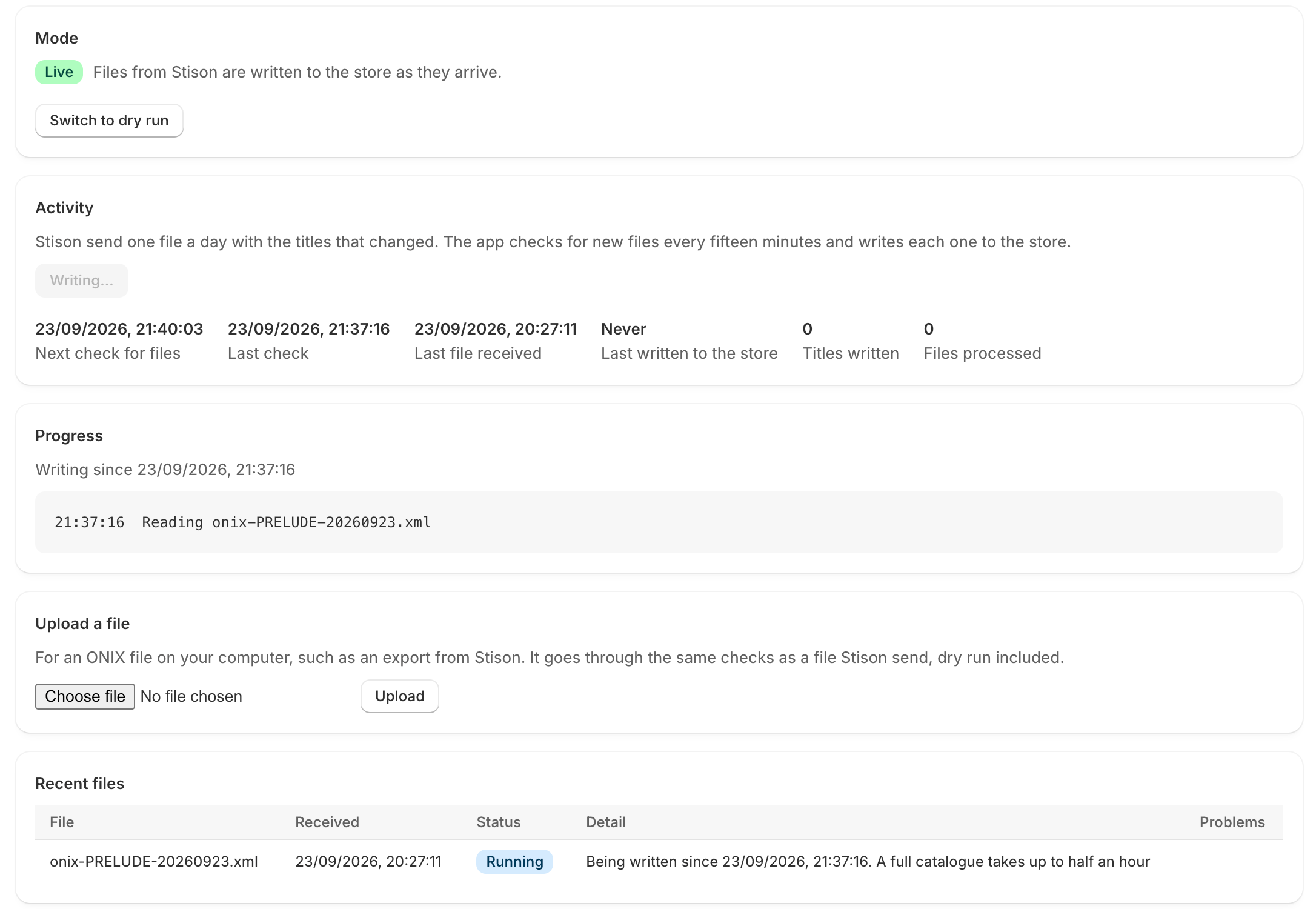
The dashboard is the Stison feed page, the first page you see when you open the app.

Mode
Shows Dry run or Live. In dry run, files are read and checked but nothing is written. In Live, each file is written to the shop as it arrives.
Activity
- Next check for files and Last check: the app looks for new files every 15 minutes.
- Last file received: when Stison last delivered.
- Last written to the store and Titles written: these don't move in dry run, because nothing is written.
- Run now: checks for a file straight away instead of waiting for the next check.
Times are UK time.
Recent files
The last ten files, each with a status:
| Status | What it means |
|---|---|
| Waiting | Arrived, and will be picked up at the next check. |
| Running | Being read or written now. |
| Dry run | Read and checked, nothing written. |
| Applied | Written to the shop. |
| Partly applied | Written, but some titles failed. They're listed under Problems. |
| Failed | The file couldn't be read at all. Other files carry on regardless. |
The Detail column gives counts, for example "412 records, 180 titles". A record is one edition (one ISBN). A title is one book, with all its editions together. So a novel in paperback, hardback and ebook is three records and one title.
"Skipped" means a title's ISBNs are spread across two different products already in your shop. The app won't guess which one is right, so it leaves both alone. Merge them by hand and the next file writes normally.
The Problems column names each title that had a problem and why.
Progress
While a file is running, a live log shows what the app is doing, title by title.
Trying a file without waiting for Stison
You don't have to wait for Stison's daily send. If you have an ONIX file on your computer, for example an export you downloaded from Stison, use Upload a file on the dashboard. Choose the .xml file and click Upload. It shows under Recent files within a few minutes and is treated exactly like a file Stison sent, so in dry run nothing is written to your store.
Files up to 50 MB can be uploaded. Anything that isn't an ONIX file is turned away.
No file of your own yet? Download our sample file. It has six made-up books from a made-up publisher: a three-book series, a title in hardback, paperback and ebook, an audiobook, and a book by two authors. Try it in dry run first, and only switch to writing to the store if you're happy to have these books in your shop.
What to check in a dry run
- The number of titles is roughly what you expect.
- The Problems column is empty, or the problems make sense to you.
- The number of titles matches your catalogue in Stison, less any not ticked "Show on Web".
Switching to writing to the store
Click Start writing to the store. The mode changes to Live and the app starts straight away: any file from the past seven days that was only dry run is written for real. A full catalogue takes up to about half an hour. You can watch it in the Progress log.
To stop writing, click Switch to dry run. Files keep being read and checked, but nothing more is written.